
AI, practical skills & better ways to workENGLISH EDITION
Stay curious. Make something useful.
Auratro
Auratro/Guides

6 prompts that show what ChatGPT remembers about you, and how to delete it

OpenAI's own help page says the memory summary is not everything. These six prompts inventory what is stored, rank the risk and build a deletion list you can actually finish.

AI-generated illustration, not a documentary image: a colossal translucent glass filing cabinet shaped like a human head, its drawers open at different depths and each holding a tiny glowing scene, while a small silhouetted figure on a ladder reaches a key toward one high drawer. A metaphor for the personal details ChatGPT can store and the difficulty of finding all of them. No real person, product interface or event is depicted.
AI-generated illustration by Auratro
In this article

ChatGPT's memory is designed to disappear into the background. You mention a health issue once, a client's name, a child's school, and months later the answer arrives already knowing. That is the feature working. It is also how a private detail ends up living in a place you never look at.

OpenAI's help centre page on memory was updated this week, and it is unusually blunt about the gap. The memory summary is a "high-level view" and it does not include everything ChatGPT remembers. You can ask the assistant what it remembers, but even that answer is a summary of a summary. The only reliable way to see the shape of it is to pull the list out and read it line by line.

These six prompts are built for that job. Each one was run once against the same ten-item sample memory list before publication, and each produced a usable, structured answer. Keep the ones that fit your account and skip the rest.

What OpenAI's page actually says

Four details matter more than the rest.

First, memory can draw on more than saved memories: past chats, custom instructions, files in Library and content from connected apps such as Gmail, depending on your plan and region. Second, deleting a chat does not necessarily delete a separate saved memory created from that chat. Third, turning Memory off does not delete your past chats, and turning it back on can create new memories from the chats that remain. Fourth, removal has a tail: changes take time to propagate, and OpenAI may keep logs of deleted saved memories for up to 30 days for safety and debugging.

There is also a useful escape hatch. Temporary chats do not create or update memories, as long as you start them unpersonalized and do not save them afterwards. Saving a temporary chat turns it into a regular chat, and memory can use it from then on.

Before you start

Open Settings, then Personalization, then Memory. Depending on your account you will see some mix of Memory, Reference saved memories, Reference chat history, Memory summary, Manage and Saved memories. Open the summary and copy it into a plain text file first. That copy is your working list, and it is also the thing you will paste into the prompts below.

Two cautions. The summary may omit details, so a clean audit of it is not proof that nothing else is stored. And the prompts are written to be pasted into the same ChatGPT account you are auditing, not into a random third-party tool.

1. The inventory

What it does: turns a loose list into categories and a sensitivity rating, so you can see the pattern instead of ten separate surprises.

Here is my ChatGPT memory summary. Sort every item into identity, work, health, money, relationships, preferences. Rate each High, Medium or Low sensitivity, then tell me the three to delete first. My summary: [paste]

Tested: on a ten-item sample it produced a clean table, rated a child's school and a medical detail as High, and named three deletion candidates with a reason for each. The ratings are judgement, not policy, so override them freely.

2. The leak test

What it does: forces the model to argue against you. Instead of "is this sensitive", it asks what a stranger could do with it.

Act as a privacy reviewer. Read my memory summary and list the five details that would damage me most if a stranger read them. For each, name the exact risk in one line. Summary: [paste]

Tested: it returned five ranked risks, including a child's school, a medication, and a client name paired with a monthly fee. The useful part is the pairing. A name alone is boring; a name plus a price is a scam script.

3. The delete map

What it does: stops you from deleting one copy and assuming the job is done.

For every sensitive memory I list, show each place it can live: memory summary, saved memory, past chat, Library file, connected app. Then give the exact settings path to remove it. Sensitive items: [paste]

Tested: it produced a table across all five locations and the matching settings paths, and it was honest that it cannot inspect your account, so it marked the other copies as possible rather than confirmed. Treat that honesty as part of the answer.

4. The redaction rewrite

What it does: keeps the usefulness of a memory while removing the identifying detail, so you can replace rather than only delete.

Rewrite each memory below as a generic preference that keeps the same usefulness but drops names, places, employers, health details and money figures. Keep each under 12 words. Memories: [paste]

Tested: "client X pays Y per month" became "prefers tracking recurring client payments", and a diagnosis became "prefers personalised wellness guidance without retaining medical specifics". Slightly bloodless, but that is the point: the assistant still helps, the file stops identifying you.

5. The standing rule

What it does: writes the instruction that stops the next batch from being saved in the first place.

Write a 70-word custom instruction I can paste into ChatGPT that stops you saving my health, money, employer, location and family details, while still remembering my writing style and language preferences.

Tested: it returned an instruction at exactly 70 words that names the categories to refuse and the preferences to keep. It also added the caveat that matters: a custom instruction is not a deletion request, and it is not a guarantee. Memory behaviour still depends on your settings and plan.

6. The monthly report

What it does: gives you a repeatable review instead of a one-off panic.

Turn my memory summary into a one-page report: item count per category, the top three risks, and a keep or delete column. Flag anything that looks outdated. Summary: [paste]

Tested: it counted items by category, flagged a medication and a school as the top risks, and marked an undated workplace conflict as ambiguous rather than fact. That last habit is worth keeping: stale context is its own kind of wrong answer.

The deletion order that actually works

Work from the smallest container to the largest. Delete the individual saved memory or summary item first, then the chat where you first shared the detail, then any Library file that contains it, then disconnect the connected app if you no longer want it reading that mailbox or calendar.

Only after that consider the blunt controls. "Don't mention this again" changes behaviour but does not delete the source. "Delete and turn off memory" clears what the summary shows and switches Memory off, but leaves your chats. Turning off Reference chat history schedules remembered past-chat information for deletion within 30 days, while the original chats stay where they are.

The limits

This is housekeeping, not a guarantee. The summary is incomplete by design. Deleted items can linger in logs for up to 30 days. Workspace accounts may have administrator controls that override your personal settings, and Healthcare or regulated workspaces handle memory differently. If you are on a personal account with "Improve the model for everyone" turned on, chats and remembered information may be used to improve models; that switch lives in Data controls, not in Memory.

The realistic goal is not an empty file. It is a file you have read, pruned, and set rules for, with a monthly prompt that tells you when it has quietly grown back.

From Auratro Editorial

Our articles help you explore AI and build practical skills. For a correction or a question, contact us. Contact

Keep reading

NEXT STORY AI News

ChatGPT can now lock a single chat behind a PIN. Here is what that actually hides

OpenAI's Locked chats keeps a conversation out of your history, pinned chats and search. It is not end-to-end encryption, and a forgotten PIN deletes everything inside.

Auratro EditorialOpen this article
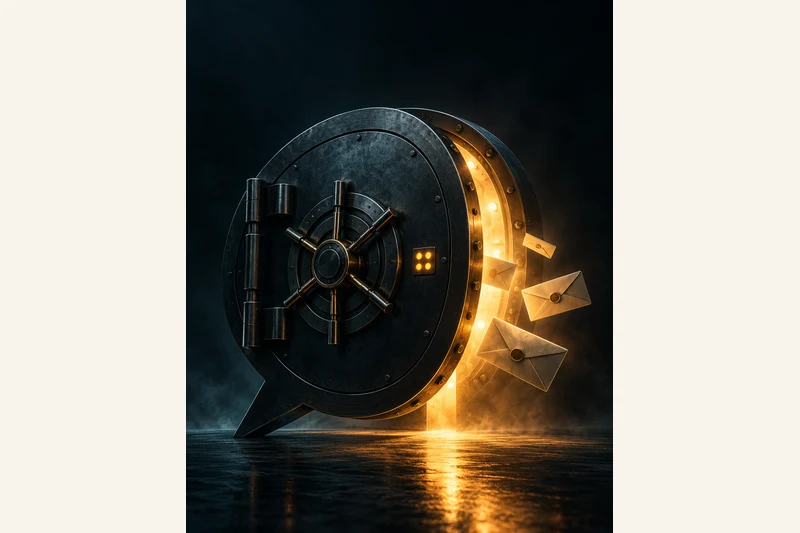
AI-generated illustration, not a documentary screenshot: a colossal black steel vault door shaped like a speech bubble stands in a dark void, slightly ajar with warm amber light spilling out and sealed envelopes floating nearby, with a four-dot keypad on the door. A metaphor for ChatGPT's Locked chats - a single conversation hidden behind a PIN, not a fully encrypted vault. No real person, product interface or event is depicted.
AI-generated illustration by Auratro

OpenAI began rolling out Locked chats on 20 October 2026. The feature hides chosen conversations from your regular chat history, pinned chats and normal ChatGPT search, and asks for a 4-digit account PIN, Face ID, Touch ID or your device unlock before it shows them. The company put it in the ChatGPT release notes and a dedicated help page; the rollout is gradual, so the option may not appear for you yet.

The intended use is narrower than a privacy overhaul. OpenAI describes it as a way to keep sensitive conversations out of view when you share a screen or hand someone your phone. In practice that covers a lot: medical questions, salary negotiations, a message you are drafting about a friend, or a surprise you are planning. Locked chats also stop those titles showing up when someone else scrolls your sidebar.

How to lock a chat

These are the documented steps, not a procedure we independently tested; interface details vary by platform and rollout.

1. Open the conversation you want to hide.

2. Open its more options menu (the three dots) and select Lock chat.

3. Confirm Lock chat again.

4. Create a 4-digit account PIN if you do not have one, or enter it when prompted.

The chat moves to Projects > Locked chats. You can open that area later, enter the PIN or use device authentication, and start new conversations from there. On iOS and Android you can switch on Face ID, Touch ID or device unlock in the account PIN settings. Device authentication is set up per device and does not replace the PIN.

Access is temporary by design. On web and desktop it applies to the tab or window where you entered the PIN and ends when you refresh or close it. On iOS and Android it ends about one minute after you leave the locked area or put the app in the background. A Lock now button ends it immediately.

What Locked chats does not do

This is the part worth reading before you trust it with anything serious. OpenAI says locking a chat does not:

  • create end-to-end encryption or a separate encrypted vault,
  • change how long OpenAI retains the conversation,
  • change your Improve the model for everyone setting,
  • remove anything ChatGPT remembered before you locked the chat,
  • override your workspace's policies, safety rules or legal obligations.

So the lock controls who can see the chat on your screen. It does not change who can access the data behind it. In a work workspace, administrators cannot unlock your chats or reset your PIN, but Enterprise and Edu locked chats still appear in conversation logs available through the OpenAI Compliance Platform. And anyone who can open a locked chat can still copy its contents.

The memory split is the useful surprise

If Memory is on, locked chats get their own memory that is shared across conversations inside the locked area. New messages sent after locking can be remembered there, and that memory does not carry back into your regular chats. Regular memory can still be used inside locked chats, and locking does not erase what was already remembered. On balance that is a sensible split: the private thread learns from itself without leaking its details into the chat you use at work.

Nine conversation types cannot be locked

The Lock chat option is unavailable for temporary chats, archived chats, group chats, chats created from a shared link, chats with scheduled tasks, chats with meeting recordings, chats associated with background tasks, chats with responses saved as project sources, and chats in the earlier Health experience. Codex conversations cannot be locked, and the feature is not available on ChatGPT for Healthcare. If you lock a chat that came from a project, it leaves that project and stops using its instructions, files and memory.

The PIN reset is a delete button

This is the one warning to say out loud. Changing your PIN, with the current PIN in hand, keeps your locked chats. Resetting a forgotten PIN permanently deletes every locked chat, the memories stored only inside them and files protected only by that PIN. OpenAI says the deletion cannot be undone and support cannot recover the content. A workspace administrator cannot reset it for you either.

Before you rely on the feature, decide where you will keep the PIN. A password manager entry is more reliable than memory. If the chats matter, consider exporting anything you would hate to lose; the reset path is not a recovery flow.

What to do now

Check whether Lock chat appears in a conversation's three-dot menu. If it does, lock one genuinely sensitive thread and test the end of access: leave the tab or background the app, then confirm it asks again. Do not treat the lock as a replacement for deleting data you no longer want stored, and do not put passwords, card numbers or other secrets into a chat just because the title is hidden.

Locked chats are available across Free, Go, Plus, Pro, Business, Enterprise and Edu plans as the rollout reaches them. The feature is a useful screen-level privacy control, not a private vault. That distinction is the whole story.

Sources & further readingOpenAI Help Center: Using locked chats in ChatGPT (updated 20 October 2026)OpenAI Help Center: ChatGPT release notes, 20 October 2026TechCrunch: ChatGPT now lets you lock your chats (20 October 2026)
NEXT STORY Tutorials

The anatomy of a Gemini Notebook: 6 parts that turn 50 files into a podcast

Google renamed NotebookLM to Gemini Notebook in July. These six parts decide what the notebook reads, what it makes and where the free limits bite.

Auratro EditorialOpen this article
AI-generated illustration, not a documentary screenshot: a giant open notebook in a dark studio, its pages curling into a microphone while documents spiral into it and blank quiz cards orbit around it. A metaphor for Gemini Notebook turning uploaded sources into audio, video and study material. No real person, product interface or event is depicted.
AI-generated illustration by Auratro

NotebookLM was renamed Gemini Notebook on 16 July 2026. It is the same standalone research product, now with a secure cloud computer for code-based analysis and notebooks that sync with the Gemini app and, Google says, AI Mode in Search. The rename is the easy part. The tool only becomes useful when you understand it as a closed box: a set of sources, a chat that must answer from those sources, and a Studio panel that turns them into other formats.

Most people open it, upload one PDF, ask a question and leave. That is roughly 20% of the product. These are the six parts worth setting up, in the order they matter.

1. The source set

A notebook is only as good as what you put inside it. On a free account Google lists 100 notebooks, 50 sources per notebook, and up to 500,000 words or 200MB per uploaded source.

Supported inputs include PDF, Word, text, Markdown, CSV and PowerPoint files; Google Docs, Slides (up to 100 slides) and Sheets (up to 100k tokens); images; audio; web URLs; ePub; eligible Play Books; pasted text; and public YouTube videos. A YouTube import is transcript-only: the video needs public captions, and one uploaded less than 72 hours ago may not be available yet.

Google's own warning is worth repeating: do not upload documents you do not have the rights to use. Each notebook is independent, so the tool cannot see across two notebooks at the same time.

2. The selection

Sources are always part of the prompt, either the whole set or the subset you tick in the Sources panel. Notes are different: they are only used when you select them.

That makes the selection a control, not a filter. For a focused answer, tick only the three documents that matter and name them in the question. Google's example is the right instinct: instead of "Summarise this source", ask what a named document says about one specific finding. With five or more sources, the app can also auto-label and group them by topic, which is useful once a project grows past a handful of files.

3. Audio Overview

This is the part people show their friends. In the Studio panel, choose Audio Overview and pick a format: Deep Dive (two hosts, the default), The Brief (one speaker, under two minutes), The Critique (two hosts evaluating a document) or The Debate (two hosts arguing the topic).

You can set the language (Google lists 80+), adjust length with Shorter, Default or Longer, and add a prompt to steer the focus or the level of expertise. Interactive mode, currently English only, lets you join the conversation and ask the hosts a question by voice. Their answer is grounded in your sources, then the overview continues.

The output is generated, not reported. Google warns that voices and content can contain inaccuracies or audio glitches, so check anything you plan to reuse.

4. Video Overview

Video Overview turns the same sources into a narrated visual summary. Pick Cinematic for a more produced storytelling style, Explainer for a structured walkthrough, or Short for a video of roughly 60 seconds. Explainer videos also offer visual styles such as Classic, Whiteboard, Watercolour, Retro Print or Anime, and a steering prompt to choose the focus.

Two practical notes: Cinematic is limited to users 18 and over and supports English only, and Google says generation can sometimes take more than 30 minutes. The producer-notes workflow, where you review an outline before rendering, is limited to Google AI Ultra subscribers.

5. The study and work outputs

The Studio panel is broader than audio and video. A Mind Map, started from the chat chip, draws the main topics and their branches; you can select a node to ask about it. Google notes that the mobile app does not support Mind Maps yet, so use the desktop version.

Flashcards and Quizzes turn the sources into practice material. You can choose easy, medium or hard, pick fewer or more cards, mark each as "Got it" or "Missed it", ask for an explanation, and export a flashcard deck as CSV. Reports cover FAQ, study guide and briefing document formats. Data Tables, Slide Decks and Infographics live in the same panel, and reports and tables can be exported to Google Docs or Sheets.

6. The limits, including the mobile gap

The mobile app is a companion, not the full product. It supports PDF, website, YouTube, audio and copied text as sources, plus chat, audio overviews, flashcards, quizzes, infographics and slide decks. Notes, Mind Maps, reports and Data Tables are desktop-only for now.

Usage is the other trap. Google's plan page still lists per-day caps, but in August 2026 Google announced flexible, compute-specific limits that refresh every five hours rather than daily for consumer accounts on web and mobile, rolling out from 2 September. Because the cost depends on prompt complexity, chat length and the number of sources, a fixed daily number is a poor guide. Check the usage panel in your own account.

Public sharing is enabled for consumer accounts; Google says it is disabled for Workspace Enterprise and Education accounts. Generated images and videos carry an invisible SynthID watermark, and eligible Pro and Ultra users can control a visible watermark.

What to try first

Start with one real project: five to ten documents you already trust. Tick those sources, ask one narrow question, then generate a Brief audio overview and a flashcard deck from the same set. If the answers drift, cut the source list before you blame the model. The six parts are not about doing more. They are about knowing exactly what the notebook was allowed to read.