
Practical AI tutorials, tool guides and workflowsENGLISH EDITION
Stay curious. Make something useful.
Auratro

AI News

Keep reading

NEXT STORY AI News

ChatGPT can now lock a single chat behind a PIN. Here is what that actually hides

OpenAI's Locked chats keeps a conversation out of your history, pinned chats and search. It is not end-to-end encryption, and a forgotten PIN deletes everything inside.

Auratro EditorialOpen this article
AI-generated illustration, not a documentary screenshot: a colossal black steel vault door shaped like a speech bubble stands in a dark void, slightly ajar with warm amber light spilling out and sealed envelopes floating nearby, with a four-dot keypad on the door. A metaphor for ChatGPT's Locked chats - a single conversation hidden behind a PIN, not a fully encrypted vault. No real person, product interface or event is depicted.
AI-generated illustration by Auratro

OpenAI began rolling out Locked chats on 20 October 2026. The feature hides chosen conversations from your regular chat history, pinned chats and normal ChatGPT search, and asks for a 4-digit account PIN, Face ID, Touch ID or your device unlock before it shows them. The company put it in the ChatGPT release notes and a dedicated help page; the rollout is gradual, so the option may not appear for you yet.

The intended use is narrower than a privacy overhaul. OpenAI describes it as a way to keep sensitive conversations out of view when you share a screen or hand someone your phone. In practice that covers a lot: medical questions, salary negotiations, a message you are drafting about a friend, or a surprise you are planning. Locked chats also stop those titles showing up when someone else scrolls your sidebar.

How to lock a chat

These are the documented steps, not a procedure we independently tested; interface details vary by platform and rollout.

  1. Open the conversation you want to hide.
  1. Open its more options menu (the three dots) and select Lock chat.
  1. Confirm Lock chat again.
  1. Create a 4-digit account PIN if you do not have one, or enter it when prompted.

The chat moves to Projects > Locked chats. You can open that area later, enter the PIN or use device authentication, and start new conversations from there. On iOS and Android you can switch on Face ID, Touch ID or device unlock in the account PIN settings. Device authentication is set up per device and does not replace the PIN.

Access is temporary by design. On web and desktop it applies to the tab or window where you entered the PIN and ends when you refresh or close it. On iOS and Android it ends about one minute after you leave the locked area or put the app in the background. A Lock now button ends it immediately.

What Locked chats does not do

This is the part worth reading before you trust it with anything serious. OpenAI says locking a chat does not:

  • create end-to-end encryption or a separate encrypted vault,
  • change how long OpenAI retains the conversation,
  • change your Improve the model for everyone setting,
  • remove anything ChatGPT remembered before you locked the chat,
  • override your workspace's policies, safety rules or legal obligations.

So the lock controls who can see the chat on your screen. It does not change who can access the data behind it. In a work workspace, administrators cannot unlock your chats or reset your PIN, but Enterprise and Edu locked chats still appear in conversation logs available through the OpenAI Compliance Platform. And anyone who can open a locked chat can still copy its contents.

The memory split is the useful surprise

If Memory is on, locked chats get their own memory that is shared across conversations inside the locked area. New messages sent after locking can be remembered there, and that memory does not carry back into your regular chats. Regular memory can still be used inside locked chats, and locking does not erase what was already remembered. On balance that is a sensible split: the private thread learns from itself without leaking its details into the chat you use at work.

Nine conversation types cannot be locked

The Lock chat option is unavailable for temporary chats, archived chats, group chats, chats created from a shared link, chats with scheduled tasks, chats with meeting recordings, chats associated with background tasks, chats with responses saved as project sources, and chats in the earlier Health experience. Codex conversations cannot be locked, and the feature is not available on ChatGPT for Healthcare. If you lock a chat that came from a project, it leaves that project and stops using its instructions, files and memory.

The PIN reset is a delete button

This is the one warning to say out loud. Changing your PIN, with the current PIN in hand, keeps your locked chats. Resetting a forgotten PIN permanently deletes every locked chat, the memories stored only inside them and files protected only by that PIN. OpenAI says the deletion cannot be undone and support cannot recover the content. A workspace administrator cannot reset it for you either.

Before you rely on the feature, decide where you will keep the PIN. A password manager entry is more reliable than memory. If the chats matter, consider exporting anything you would hate to lose; the reset path is not a recovery flow.

What to do now

Check whether Lock chat appears in a conversation's three-dot menu. If it does, lock one genuinely sensitive thread and test the end of access: leave the tab or background the app, then confirm it asks again. Do not treat the lock as a replacement for deleting data you no longer want stored, and do not put passwords, card numbers or other secrets into a chat just because the title is hidden.

Locked chats are available across Free, Go, Plus, Pro, Business, Enterprise and Edu plans as the rollout reaches them. The feature is a useful screen-level privacy control, not a private vault. That distinction is the whole story.
Sources & further readingOpenAI Help Center: Using locked chats in ChatGPT (updated 20 October 2026)OpenAI Help Center: ChatGPT release notes, 20 October 2026TechCrunch: ChatGPT now lets you lock your chats (20 October 2026)
NEXT STORY Guides

What MCP lets an AI assistant do and how to check access

Follow a document lookup from request to result, then use a checklist to judge a connection before allowing it to act.

Auratro EditorialOpen this article
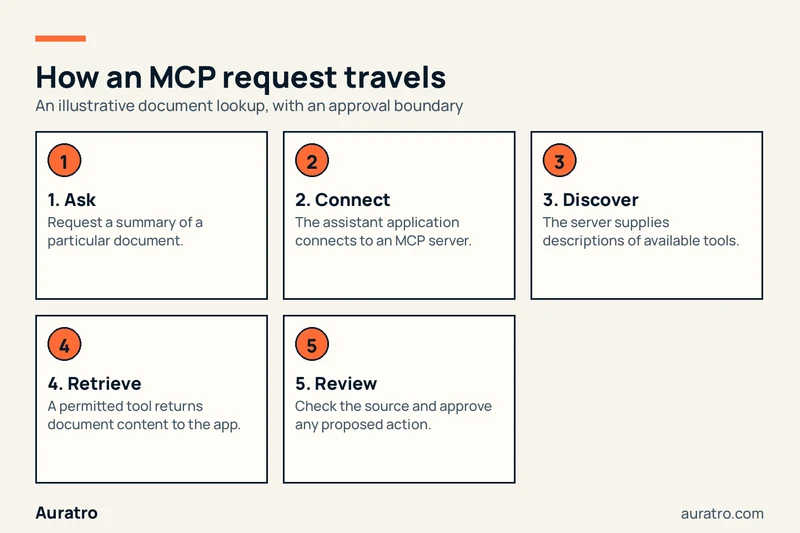
Five steps in an illustrative MCP document lookup, from a request to checking the result and proposed action.
Diagram by Auratro

You ask an AI assistant to summarise a document stored in another service. Without a connection to that service, the assistant may only know the text you paste into the chat. With a suitable connection, it may be able to retrieve the document itself. Model Context Protocol, or MCP, is one way an application can arrange that connection.

MCP provides a shared way for an AI application to communicate with a server that exposes capabilities. It does not give every assistant access to every file or guarantee that an action is safe. The examples below explain the mechanism rather than a particular product setup. Interfaces and permissions change, so check the official documentation for your application before connecting a service.

The parts of a connection

Think of the assistant application as the place where you ask a question. It acts as a host: the application manages the conversation and connections. An MCP client is the part that communicates with an MCP server. The server presents capabilities from a data source or service in a form the application can use. A server can run locally or remotely; the word server describes its role, not necessarily a machine in a distant data centre.

According to OpenAI's documentation on MCP servers, an application can import a server's available tools and let a model request calls to them. A tool is a named operation with inputs and a result. It could search documents or create an item, depending on what its operator provides and what the account permits. For the wider distinction between answering and acting, see how an AI agent differs from a chatbot.

What can cross the connection

Support varies across applications and servers: As of 29 November 2026, Anthropic's MCP connector documentation says its Messages API connector supports tool calls, rather than the entire MCP feature set.

CapabilityWhat it providesExample
Search toolFinds information in a serviceSearch a document collection
Read toolRetrieves available informationRead a selected document
Write toolRequests a change in a serviceCreate a task

A server need not offer every kind of tool, and an application need not enable every tool a server offers. Even a tool labelled as a search may return sensitive text to the assistant application. A tool that changes data has a different consequence: it may create, update or delete something. Read the actual description and permissions instead of assuming a connection is read-only.

A worked example: summarise a project note

Imagine an assistant connected to a document service through an MCP server. You ask: ‘Summarise the launch checklist in the project note and identify anything still undecided.’ This is an illustrative example written by Auratro, not a recorded interaction. The server in this example offers a document search tool and a separate tool to create a task. Other servers may offer different operations.

The application first makes the server's tool descriptions available to the model. The model can request a search using a title or other input; the application sends the call to the server and receives a result. If the returned text contains the relevant note, the assistant can use it to draft a summary. OpenAI's documentation describes this sequence of listing tools, making calls and receiving results in its API implementation.

Suppose the note says a release date is undecided. A useful answer should preserve that uncertainty and identify the note it used. If the assistant proposes creating a task, that is a separate action from reading the note. Ask to see the task title and destination before approving it. A tool result can be incomplete or refer to an outdated note, so compare the answer with the original. The same principle appears in our five-step check for AI hallucinations.

A checklist before you connect

Use this decision checklist for a connection you are considering. It is a method for evaluating access, not a claim that every product displays the same controls. You may need to consult the connection provider or your organisation's administrator for the details.

  1. Identify the provider and destination. Find out who operates the MCP server and which service or account it will reach. Prefer a server you can identify and trust.
  2. Inspect the requested access. Look for the data it can read and whether it can create, change or delete items. Limit access to what the task needs when the product permits it.
  3. Inspect the available operations. Separate information retrieval from actions that change something or send data elsewhere. A tool name alone is not a complete security review.
  4. Decide how approval works. Find out whether the application asks before a call or a consequential action, and review the actual request before accepting it.
  5. Check a small result. Start with a low-stakes document, ask the assistant to identify its source, and compare the answer against that document.
  6. Revisit access afterwards. If the connection is no longer needed, use the service's available controls to remove it and review any remaining permissions.

OpenAI recommends connecting only to trusted servers and reviewing data shared with them. Its documentation also describes approval controls for MCP tool calls in its API. Anthropic documents tool allowlists and denylists for its connector. These are examples of controls in particular implementations, not promises about every assistant. For sensitive material, apply a chatbot privacy checklist before sharing the document or connecting its storage.

Common mistakes and myths

‘MCP means the assistant can access everything.’ No. A connection supplies particular capabilities and access depends on the server, account and application. A server might expose a document search but no task creation. Even if a task tool exists, its permitted scope depends on the connected account and configuration. Ask what it can actually reach before relying on it.

‘A connected source is an instruction I should obey.’ A document is evidence for the task, not an authority to change the task. OpenAI's agent safety guidance describes prompt injection: untrusted content can try to redirect an assistant's behaviour. For example, a retrieved note might contain instructions to share other files. Treat that as suspicious content in the note, not permission from you to share anything.

‘A successful call proves the answer is correct.’ A tool can return the wrong match, an old version or information that the assistant summarises badly. Confirm the document's identity and check important details in the source. A connection makes retrieval possible; it does not independently verify the truth of the material returned.

What to do with this

Choose one recurring question that needs information from a specific service, such as finding a project note. Write down the exact information needed and the action, if any, you want the assistant to take. A read-only lookup is a useful first scenario because its desired result is easy to compare with the source. Keep any write or message as a distinct decision.

Then use the checklist above to assess the available connection. If you cannot identify the operator, access scope or approval behaviour, leave the connection off until you can. When a result arrives, look for the document name and compare the answer with the original. That gives you a repeatable way to assess both the connection and the assistant's handling of the information.

Limits and what to check

MCP is a protocol, not an assurance that a particular service has a compatible server, that a host supports every capability, or that a model will select the right tool. Anthropic's documented connector, for example, supports tool calls and requires a remotely accessible HTTP server; another host can have different requirements. Server features, permissions and interfaces can change between versions and accounts.

Before using a connection for real work, verify the current provider, available tools, data access and approval controls in the documentation for your own application and server. An approval screen is useful only if you understand the requested action and destination. If the returned source is incomplete or uncertain, resolve that before using its summary to make a consequential decision.

Sources & further readingMCP servers | OpenAI APIMCP connector | Claude Platform DocsSafety in building agents | OpenAI API