What MCP lets an AI assistant do and how to check access
Follow a document lookup from request to result, then use a checklist to judge a connection before allowing it to act.
In this article
You ask an AI assistant to summarise a document stored in another service. Without a connection to that service, the assistant may only know the text you paste into the chat. With a suitable connection, it may be able to retrieve the document itself. Model Context Protocol, or MCP, is one way an application can arrange that connection.
MCP provides a shared way for an AI application to communicate with a server that exposes capabilities. It does not give every assistant access to every file or guarantee that an action is safe. The examples below explain the mechanism rather than a particular product setup. Interfaces and permissions change, so check the official documentation for your application before connecting a service.
The parts of a connection
Think of the assistant application as the place where you ask a question. It acts as a host: the application manages the conversation and connections. An MCP client is the part that communicates with an MCP server. The server presents capabilities from a data source or service in a form the application can use. A server can run locally or remotely; the word server describes its role, not necessarily a machine in a distant data centre.
According to OpenAI's documentation on MCP servers, an application can import a server's available tools and let a model request calls to them. A tool is a named operation with inputs and a result. It could search documents or create an item, depending on what its operator provides and what the account permits. For the wider distinction between answering and acting, see how an AI agent differs from a chatbot.
What can cross the connection
Support varies across applications and servers: As of 29 November 2026, Anthropic's MCP connector documentation says its Messages API connector supports tool calls, rather than the entire MCP feature set.
| Capability | What it provides | Example |
|---|---|---|
| Search tool | Finds information in a service | Search a document collection |
| Read tool | Retrieves available information | Read a selected document |
| Write tool | Requests a change in a service | Create a task |
A server need not offer every kind of tool, and an application need not enable every tool a server offers. Even a tool labelled as a search may return sensitive text to the assistant application. A tool that changes data has a different consequence: it may create, update or delete something. Read the actual description and permissions instead of assuming a connection is read-only.
A worked example: summarise a project note
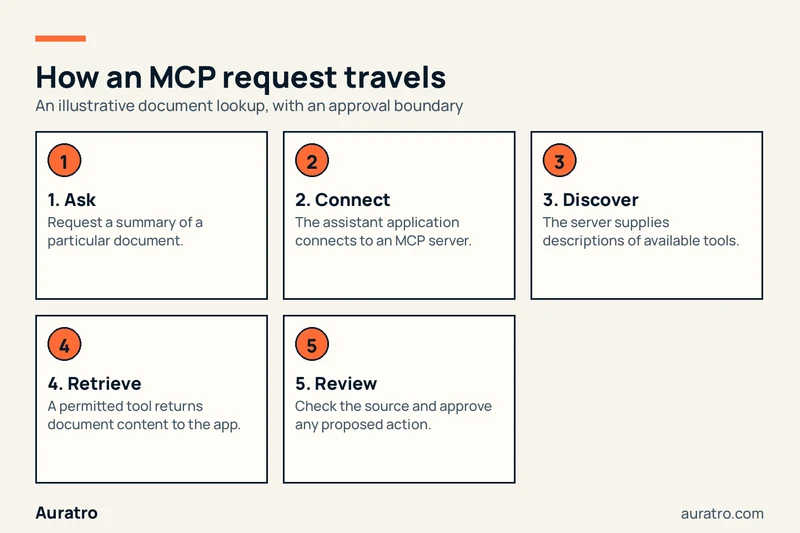
Imagine an assistant connected to a document service through an MCP server. You ask: ‘Summarise the launch checklist in the project note and identify anything still undecided.’ This is an illustrative example written by Auratro, not a recorded interaction. The server in this example offers a document search tool and a separate tool to create a task. Other servers may offer different operations.
The application first makes the server's tool descriptions available to the model. The model can request a search using a title or other input; the application sends the call to the server and receives a result. If the returned text contains the relevant note, the assistant can use it to draft a summary. OpenAI's documentation describes this sequence of listing tools, making calls and receiving results in its API implementation.
Suppose the note says a release date is undecided. A useful answer should preserve that uncertainty and identify the note it used. If the assistant proposes creating a task, that is a separate action from reading the note. Ask to see the task title and destination before approving it. A tool result can be incomplete or refer to an outdated note, so compare the answer with the original. The same principle appears in our five-step check for AI hallucinations.
A checklist before you connect
Use this decision checklist for a connection you are considering. It is a method for evaluating access, not a claim that every product displays the same controls. You may need to consult the connection provider or your organisation's administrator for the details.
- Identify the provider and destination. Find out who operates the MCP server and which service or account it will reach. Prefer a server you can identify and trust.
- Inspect the requested access. Look for the data it can read and whether it can create, change or delete items. Limit access to what the task needs when the product permits it.
- Inspect the available operations. Separate information retrieval from actions that change something or send data elsewhere. A tool name alone is not a complete security review.
- Decide how approval works. Find out whether the application asks before a call or a consequential action, and review the actual request before accepting it.
- Check a small result. Start with a low-stakes document, ask the assistant to identify its source, and compare the answer against that document.
- Revisit access afterwards. If the connection is no longer needed, use the service's available controls to remove it and review any remaining permissions.
OpenAI recommends connecting only to trusted servers and reviewing data shared with them. Its documentation also describes approval controls for MCP tool calls in its API. Anthropic documents tool allowlists and denylists for its connector. These are examples of controls in particular implementations, not promises about every assistant. For sensitive material, apply a chatbot privacy checklist before sharing the document or connecting its storage.
Common mistakes and myths
‘MCP means the assistant can access everything.’ No. A connection supplies particular capabilities and access depends on the server, account and application. A server might expose a document search but no task creation. Even if a task tool exists, its permitted scope depends on the connected account and configuration. Ask what it can actually reach before relying on it.
‘A connected source is an instruction I should obey.’ A document is evidence for the task, not an authority to change the task. OpenAI's agent safety guidance describes prompt injection: untrusted content can try to redirect an assistant's behaviour. For example, a retrieved note might contain instructions to share other files. Treat that as suspicious content in the note, not permission from you to share anything.
‘A successful call proves the answer is correct.’ A tool can return the wrong match, an old version or information that the assistant summarises badly. Confirm the document's identity and check important details in the source. A connection makes retrieval possible; it does not independently verify the truth of the material returned.
What to do with this
Choose one recurring question that needs information from a specific service, such as finding a project note. Write down the exact information needed and the action, if any, you want the assistant to take. A read-only lookup is a useful first scenario because its desired result is easy to compare with the source. Keep any write or message as a distinct decision.
Then use the checklist above to assess the available connection. If you cannot identify the operator, access scope or approval behaviour, leave the connection off until you can. When a result arrives, look for the document name and compare the answer with the original. That gives you a repeatable way to assess both the connection and the assistant's handling of the information.
Limits and what to check
MCP is a protocol, not an assurance that a particular service has a compatible server, that a host supports every capability, or that a model will select the right tool. Anthropic's documented connector, for example, supports tool calls and requires a remotely accessible HTTP server; another host can have different requirements. Server features, permissions and interfaces can change between versions and accounts.
Before using a connection for real work, verify the current provider, available tools, data access and approval controls in the documentation for your own application and server. An approval screen is useful only if you understand the requested action and destination. If the returned source is incomplete or uncertain, resolve that before using its summary to make a consequential decision.
Sources & further reading
Written by the Auratro desk with AI assistance and checked against the sources listed above before publication. See how we work, or report an error. Editorial policy · Contact