
Practical AI tutorials, tool guides and workflowsENGLISH EDITION
Stay curious. Make something useful.
Auratro
Auratro/Tutorials

Turn meeting notes into clear action items with an AI assistant

Use a reusable prompt, a worked example and a source-checking routine to separate agreed tasks from unresolved details.
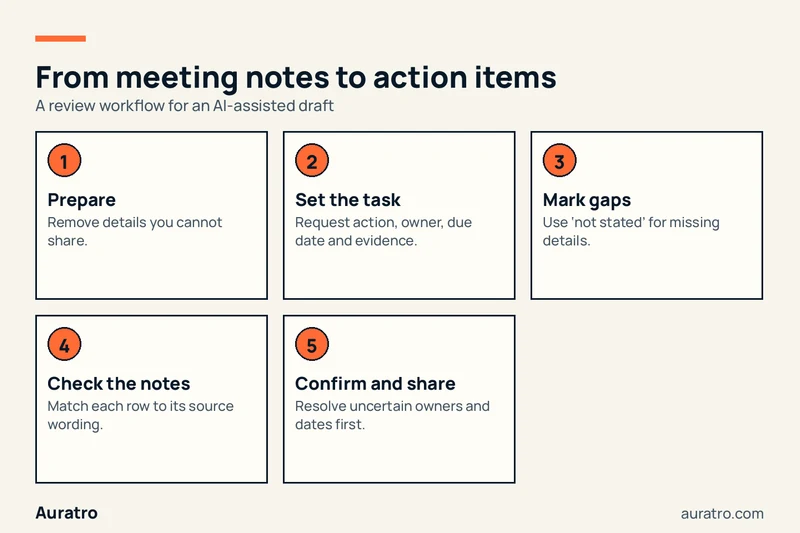
Five-step diagram showing how to prepare notes, prompt an assistant, mark gaps, check evidence and confirm action items.
Diagram by Auratro
In this article

A meeting ends with a page of shorthand: a report to prepare, a possible review and a deadline mentioned in passing. An AI assistant can turn that text into a draft action list, but a neat table can make an assumption look like an agreement. The useful result is a list you can trace back to the notes, with gaps left visible.

This workflow uses a prompt and a manual review rather than a particular app’s menus. It follows Anthropic’s advice to allow uncertainty and ground claims in source wording, and Google’s warning that Gemini responses can be inaccurate. The guidance was checked on 23 November 2026; confirm your own tool’s current privacy terms and features before submitting meeting material.

Prepare notes you are allowed to share

Start with notes you have permission to use in your chosen service. Remove confidential details and personal information that the task does not need, or replace names with role labels such as ‘project lead’. Keep a private mapping only where your organisation permits it. If the notes cannot be shared with the assistant, use an approved alternative or make the list manually.

Data handling differs between services and accounts. Google’s Gemini Apps Privacy Hub says prompts and shared files are information provided to Gemini Apps, and that human reviewers review some collected data. Its notice also says work or school accounts may have different terms. That is a reason to check the relevant account policy, not a claim that every AI assistant handles notes identically.

Preserve enough context to interpret the notes: the meeting date, any explicit deadline and the surrounding sentence for each decision. If the notes say ‘Friday’ but do not identify which Friday, do not silently convert it into a calendar date. Keep the original wording available for the review at the end.

Set up a useful action-item prompt

An action item is a specific piece of work someone is expected to do. An owner is the person or role responsible for it; a due date is when it is expected. A discussion point or suggestion is not automatically an agreed task. Ask for these distinctions explicitly so the draft has somewhere to put uncertainty.

Anthropic’s guidance on reducing hallucinations recommends allowing uncertainty and asking for supporting quotations. The following example adapts those principles to meeting notes. It is a sample prompt written by Auratro, not a claim that any particular assistant was tested. For more on composing instructions, see the five-part AI prompt template.

Turn the notes between <notes> tags into a draft action list.
Use only the notes; do not invent tasks, owners or dates.
Return a table with: action, owner, due date, supporting wording.
Write ‘not stated’ for a missing owner or date.
Put suggestions, unclear commitments and unresolved questions in a separate list.
Keep relative dates as written unless the notes provide an unambiguous date.
<notes>
Paste permitted meeting notes here.
</notes>

The tags are labels that separate your instructions from the material to be processed. Replace the placeholder with permitted notes; do not add a name or a deadline merely to fill a column. The supporting wording is a checking aid, not proof by itself: compare it with the original because the assistant can also misquote or omit context.

How to make and check the list

These steps describe a general text workflow, not a product-specific menu sequence. You need the original notes, an assistant you are authorised to use and somewhere to keep the reviewed list. Work through the output before sending it to a group or entering it into a task tracker.

  1. Read the notes and remove information you cannot share. Keep the meeting date and wording needed to understand commitments.
  2. Paste the example prompt into your chosen assistant, then place the permitted notes between the tags.
  3. Submit the request and inspect the draft table. Look for an action, an owner, a due date and supporting wording in each row.
  4. Compare each row with the original notes. Correct a changed meaning, a borrowed deadline or an owner who was merely mentioned.
  5. Check the separate list of suggestions and unresolved questions. Ask participants to clarify any commitment, owner or date that the notes do not establish.
  6. Share the corrected list or enter it in your tracker, keeping unresolved fields labelled until someone confirms them.

For a long meeting, split the notes at natural topic boundaries and review each portion against its own source. Keep any shared context with the relevant portion. A context window limits how much material an assistant can consider at once; splitting the material does not remove the need to check for tasks spanning two sections.

Worked example: an owner is not a deadline

Consider these fictional notes: ‘The project lead will draft the launch checklist. The team discussed Friday for a review, but did not agree a date. Operations will check the supplier list by 14 May.’ The notes identify two tasks, but only one has a confirmed date. The following is an illustrative table written by Auratro, not a recorded answer from an AI tool.

ActionOwnerDue dateSupporting wording
Draft the launch checklistProject leadNot stated‘will draft the launch checklist’
Check the supplier listOperations14 May‘will check the supplier list by 14 May’

The Friday review belongs in the unresolved list: it was discussed but not agreed. Attaching Friday to the checklist would convert a possibility into a commitment. The second row preserves the date as stated; if the year matters for a tracker, ask for it rather than inventing one. A reviewer should also check that ‘Operations’ is an acceptable owner in the team’s process or identify a responsible person.

A useful follow-up question is: ‘Who owns the review, and has a date been agreed?’ Once the answer is confirmed, update the record yourself. If participants disagree with the notes, record the correction in the appropriate meeting record as well as the action list. Otherwise the source and the tracker will tell different stories.

Common mistakes to catch

Treating mention as ownership. A name beside a topic does not necessarily mean that person accepted the work. Look for a clear commitment in context. If it is absent, leave the owner as ‘not stated’ and ask. The same rule applies to a team name that does not identify who will actually do the work.

Turning a proposal into a decision. Words such as ‘could’ or ‘consider’ can describe an option rather than an assignment. Keep it in the unresolved list until the group decides. Likewise, a date mentioned during a discussion may refer to a different task. Check the sentence around it before copying it into a deadline field.

Trusting a polished quotation. Google’s guidance says Gemini can present inaccurate information as fact. A plausible supporting excerpt is therefore a pointer for a human check, not a substitute for one. Search the original notes for the phrase and read enough around it to see whether the task, owner and date belong together.

Limits and what to check

An assistant cannot recover a decision that was never recorded from the notes alone. Even a complete-looking table can omit a task or combine separate discussions. Compare the whole output with the source, then ask participants about missing or disputed details. If the notes themselves are wrong, the source check will not fix them without that conversation.

Tools, account policies, input limits and available features vary and change. Check the current documentation and your organisation’s rules before uploading notes, especially when they contain sensitive material. If you cannot provide the material to an approved assistant, use the same columns and uncertainty labels to prepare the list by hand.

Sources & further reading

Anthropic guidance on reducing hallucinations

Learn about responses from Gemini Apps

Gemini Apps Privacy Hub

From Auratro Editorial

Written by the Auratro desk with AI assistance and checked against the sources listed above before publication. See how we work, or report an error. Editorial policy · Contact
Keep reading

NEXT STORY Guides

What MCP lets an AI assistant do and how to check access

Follow a document lookup from request to result, then use a checklist to judge a connection before allowing it to act.

Auratro EditorialOpen this article
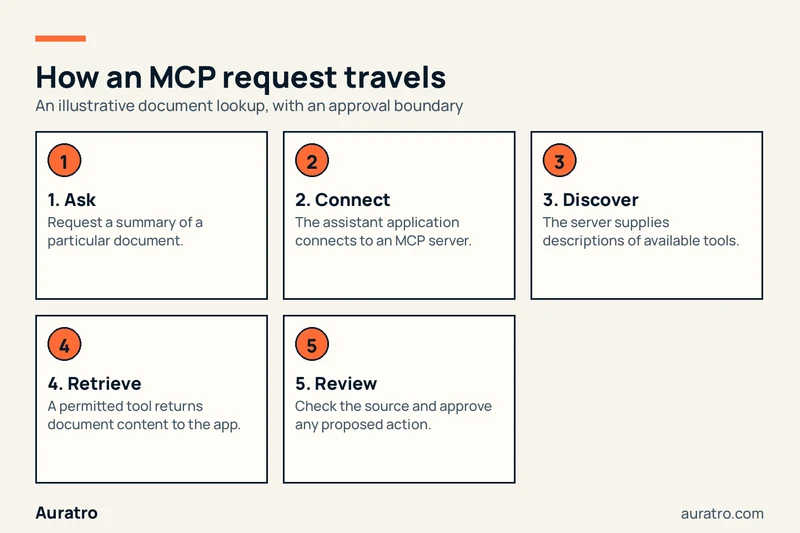
Five steps in an illustrative MCP document lookup, from a request to checking the result and proposed action.
Diagram by Auratro

You ask an AI assistant to summarise a document stored in another service. Without a connection to that service, the assistant may only know the text you paste into the chat. With a suitable connection, it may be able to retrieve the document itself. Model Context Protocol, or MCP, is one way an application can arrange that connection.

MCP provides a shared way for an AI application to communicate with a server that exposes capabilities. It does not give every assistant access to every file or guarantee that an action is safe. The examples below explain the mechanism rather than a particular product setup. Interfaces and permissions change, so check the official documentation for your application before connecting a service.

The parts of a connection

Think of the assistant application as the place where you ask a question. It acts as a host: the application manages the conversation and connections. An MCP client is the part that communicates with an MCP server. The server presents capabilities from a data source or service in a form the application can use. A server can run locally or remotely; the word server describes its role, not necessarily a machine in a distant data centre.

According to OpenAI's documentation on MCP servers, an application can import a server's available tools and let a model request calls to them. A tool is a named operation with inputs and a result. It could search documents or create an item, depending on what its operator provides and what the account permits. For the wider distinction between answering and acting, see how an AI agent differs from a chatbot.

What can cross the connection

Support varies across applications and servers: As of 29 November 2026, Anthropic's MCP connector documentation says its Messages API connector supports tool calls, rather than the entire MCP feature set.

CapabilityWhat it providesExample
Search toolFinds information in a serviceSearch a document collection
Read toolRetrieves available informationRead a selected document
Write toolRequests a change in a serviceCreate a task

A server need not offer every kind of tool, and an application need not enable every tool a server offers. Even a tool labelled as a search may return sensitive text to the assistant application. A tool that changes data has a different consequence: it may create, update or delete something. Read the actual description and permissions instead of assuming a connection is read-only.

A worked example: summarise a project note

Imagine an assistant connected to a document service through an MCP server. You ask: ‘Summarise the launch checklist in the project note and identify anything still undecided.’ This is an illustrative example written by Auratro, not a recorded interaction. The server in this example offers a document search tool and a separate tool to create a task. Other servers may offer different operations.

The application first makes the server's tool descriptions available to the model. The model can request a search using a title or other input; the application sends the call to the server and receives a result. If the returned text contains the relevant note, the assistant can use it to draft a summary. OpenAI's documentation describes this sequence of listing tools, making calls and receiving results in its API implementation.

Suppose the note says a release date is undecided. A useful answer should preserve that uncertainty and identify the note it used. If the assistant proposes creating a task, that is a separate action from reading the note. Ask to see the task title and destination before approving it. A tool result can be incomplete or refer to an outdated note, so compare the answer with the original. The same principle appears in our five-step check for AI hallucinations.

A checklist before you connect

Use this decision checklist for a connection you are considering. It is a method for evaluating access, not a claim that every product displays the same controls. You may need to consult the connection provider or your organisation's administrator for the details.

  1. Identify the provider and destination. Find out who operates the MCP server and which service or account it will reach. Prefer a server you can identify and trust.
  2. Inspect the requested access. Look for the data it can read and whether it can create, change or delete items. Limit access to what the task needs when the product permits it.
  3. Inspect the available operations. Separate information retrieval from actions that change something or send data elsewhere. A tool name alone is not a complete security review.
  4. Decide how approval works. Find out whether the application asks before a call or a consequential action, and review the actual request before accepting it.
  5. Check a small result. Start with a low-stakes document, ask the assistant to identify its source, and compare the answer against that document.
  6. Revisit access afterwards. If the connection is no longer needed, use the service's available controls to remove it and review any remaining permissions.

OpenAI recommends connecting only to trusted servers and reviewing data shared with them. Its documentation also describes approval controls for MCP tool calls in its API. Anthropic documents tool allowlists and denylists for its connector. These are examples of controls in particular implementations, not promises about every assistant. For sensitive material, apply a chatbot privacy checklist before sharing the document or connecting its storage.

Common mistakes and myths

‘MCP means the assistant can access everything.’ No. A connection supplies particular capabilities and access depends on the server, account and application. A server might expose a document search but no task creation. Even if a task tool exists, its permitted scope depends on the connected account and configuration. Ask what it can actually reach before relying on it.

‘A connected source is an instruction I should obey.’ A document is evidence for the task, not an authority to change the task. OpenAI's agent safety guidance describes prompt injection: untrusted content can try to redirect an assistant's behaviour. For example, a retrieved note might contain instructions to share other files. Treat that as suspicious content in the note, not permission from you to share anything.

‘A successful call proves the answer is correct.’ A tool can return the wrong match, an old version or information that the assistant summarises badly. Confirm the document's identity and check important details in the source. A connection makes retrieval possible; it does not independently verify the truth of the material returned.

What to do with this

Choose one recurring question that needs information from a specific service, such as finding a project note. Write down the exact information needed and the action, if any, you want the assistant to take. A read-only lookup is a useful first scenario because its desired result is easy to compare with the source. Keep any write or message as a distinct decision.

Then use the checklist above to assess the available connection. If you cannot identify the operator, access scope or approval behaviour, leave the connection off until you can. When a result arrives, look for the document name and compare the answer with the original. That gives you a repeatable way to assess both the connection and the assistant's handling of the information.

Limits and what to check

MCP is a protocol, not an assurance that a particular service has a compatible server, that a host supports every capability, or that a model will select the right tool. Anthropic's documented connector, for example, supports tool calls and requires a remotely accessible HTTP server; another host can have different requirements. Server features, permissions and interfaces can change between versions and accounts.

Before using a connection for real work, verify the current provider, available tools, data access and approval controls in the documentation for your own application and server. An approval screen is useful only if you understand the requested action and destination. If the returned source is incomplete or uncertain, resolve that before using its summary to make a consequential decision.

Sources & further readingMCP servers | OpenAI APIMCP connector | Claude Platform DocsSafety in building agents | OpenAI API
NEXT STORY Tutorials

How to proofread and tighten writing with AI while keeping your voice

Use separate editing passes, a reusable prompt and a side-by-side check to keep control of your words and meaning.

Auratro EditorialOpen this article
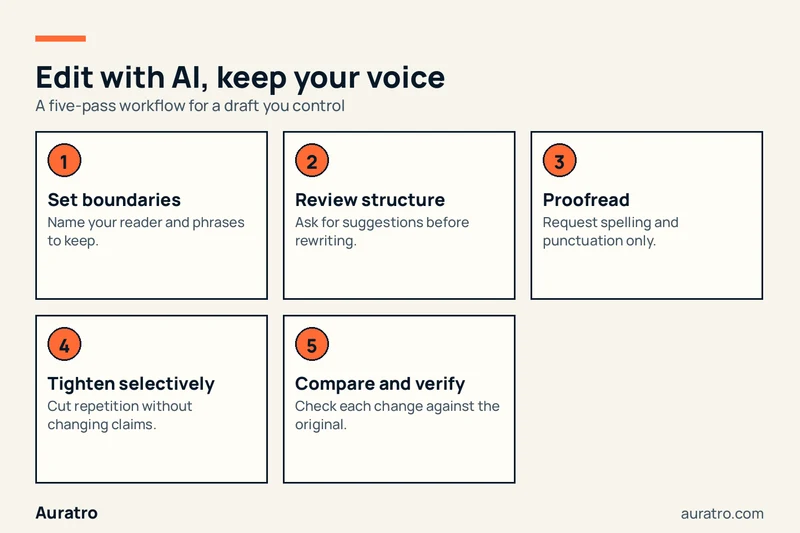
Five steps for editing writing with AI, from setting boundaries to comparing changes
Diagram by Auratro

A polished rewrite can be less useful than the messy original if it changes a promise or removes the phrase that sounds like you. To proofread with AI while keeping your voice, ask for a narrow edit, inspect the proposed changes and make the final choices yourself. Work on structure, errors and concision in separate passes.

This method adapts guidance from Google and Anthropic into a reusable editing routine. It works with a text-based AI assistant; the examples below are instructions you can adapt, not a record of a product test. Interfaces and data policies vary, so check your chosen tool's current guidance before sharing a draft.

Decide what must stay yours

Voice is the pattern of choices that makes a piece sound like its writer: word choice, rhythm, level of formality and the way it addresses readers. Choose two or three traits you actually want to keep, such as conversational sentences and a dry aside. Mark a phrase that carries your meaning or sounds distinctly like you. These are editing instructions, not a guarantee the assistant will follow them.

Tell the assistant who will read the piece and what you want the reader to do. Google's technical writing guidance recommends identifying an audience, document type and goal in a prompt. Anthropic's Claude Opus 4.8 guidance suggests specifying a desired tone and revisiting style instructions when model behaviour changes. A short sample of your own writing can demonstrate the tone you want, provided you have permission to share it.

Keep a separate copy of the original. That gives you a reference when an edit sounds smoother but quietly changes a qualification. If the draft contains private material, remove it or use an approved tool; the chatbot privacy checklist helps you decide what to leave out.

How to edit in five passes

The workflow below is an editorial method built from the sources, not a product-specific menu tutorial. Open a text assistant of your choice and use its normal message field. Google recommends dealing with organisation before grammar and style; its guide also warns that generated responses can contain errors. Apply the following steps to a short section first.

  1. Save an untouched copy of the draft. Identify its audience, purpose and any wording, claims or qualifications that must stay.
  2. Ask for an organisation review. Request a list of confusing transitions or misplaced paragraphs, without a rewrite. Decide which suggestions fit your purpose.
  3. Request a proofreading pass for spelling, punctuation and grammar only. Ask for each proposed correction with its reason, so you can reject a change that is deliberate.
  4. Ask for a separate tightening pass. Request specific cuts to repetition and wordy phrases, while preserving the meaning, tone and marked phrases.
  5. Compare each suggestion with the saved original. Check numbers, names, negations and qualifications, then accept, revise or reject the change yourself.

For a long document, repeat the passes on manageable sections and then read the whole piece for continuity. A paragraph can make sense alone while a transition fails in context. The five-part prompt template offers another way to spell out the task, context and desired response.

A prompt you can adapt

Use this example after replacing the bracketed parts. It asks for suggestions rather than automatic acceptance, and separates the text to edit from the instructions. Anthropic suggests specifying a desired tone for Claude Opus 4.8; Google suggests constraining an assistant to information supplied by the writer. Neither instruction guarantees compliance, so review the result.

Help me edit a [document type] for [audience]. The reader should [goal].

My voice is [two concrete traits]. Keep these phrases: [phrases]. Preserve all claims and qualifications. Do not add facts.

First, list up to three structural concerns without rewriting. Then list spelling, grammar and punctuation suggestions separately. Finally, suggest specific cuts to repetition. For each suggestion, show the original, the proposed change and a brief reason. Flag anything whose meaning is unclear instead of guessing.

Draft: [paste a short, shareable section] ```

The prompt groups three requests in one message, but you can send them separately if the response mixes them together. For a strictly mechanical proofread, remove the structure and tightening requests. If a suggested edit sounds unlike you, describe the problem precisely: for example, ask to keep contractions or retain the original sentence order.

Worked example: shorter without a stronger claim

The following passage and edits are illustrative examples written by Auratro, not recorded answers from an AI tool. Imagine a community organiser writing to volunteers: ‘We are hoping to possibly open the garden on Saturday, if the weather allows us to do so.’ The message has a clear condition and expresses a hope, not a confirmed opening.

A useful proposed cut is: ‘We hope to open the garden on Saturday, weather permitting.’ It removes extra words while keeping the hope and the weather condition. A risky edit would be: ‘The garden opens on Saturday.’ That version drops both uncertainties. It is shorter, but it makes a different promise. Reject it unless you have independently confirmed the opening.

Now consider voice. If the writer normally says ‘if the weather holds’, that phrase may feel more natural than ‘weather permitting’. A possible final sentence is: ‘We hope to open the garden on Saturday, if the weather holds.’ The author chooses it; the assistant's phrasing is only a proposal. Google’s short-sentence guidance recommends removing unnecessary words and focusing sentences on one idea, but brevity is not a reason to discard meaning.

Common mistakes to catch

A request to ‘make this professional’ leaves the desired tone open to interpretation. Name the intended audience and give a concrete description instead, such as ‘friendly and direct, with contractions’. Also avoid asking for a complete rewrite when you only need corrections: request a list of changes so you can inspect the original wording beside each suggestion.

Watch for changes to small words. ‘May’ can become ‘will’; ‘some’ can become ‘all’; a negative can disappear. Check any quotation against its source and every number against the record from which it came. Google warns that model responses can introduce mistakes and advises checking both factual errors and passages that do not feel right. A fluent sentence is not evidence that its claim is true.

Do not treat every long sentence as an error. A deliberate rhythm, qualification or example may earn its space. Google's guidance is aimed at technical writing and suggests shortening sentences and removing unnecessary words; a personal essay or fictional dialogue may need different rhythms. Read the edited passage aloud and restore wording that better serves the reader.

Limits and what to check

A prompt cannot ensure the assistant preserves voice, keeps facts unchanged or identifies every error. Its suggestions are a starting point for judgement. Compare the final version with the saved original, verify factual claims against reliable sources and read the whole piece for missing context. Ask a human reader for a second opinion when the stakes or audience warrant it.

Privacy controls, retention policies, available features and interfaces differ across services and plans and can change. Check the official documentation for the service and account you use before submitting material. If you cannot share a document, apply the same checklist yourself to an anonymised passage or keep the editing offline.

Sources & further readingUsing large language models in technical writingPrompting Claude Opus 4.8Short sentences