How to summarise a long PDF with AI and check important details
A section-by-section workflow keeps a trail from each claim back to the document, including exceptions and charts.
In this article
A long PDF can contain the answer you need in a footnote, an exception or a table that a short summary leaves out. Use AI to make a map and draft notes, then check the details against the original. The goal is a concise account with a trail back to the pages, not a promise that every sentence survives compression.
The ChatGPT upload steps below follow OpenAI's file guide, checked on 25 November 2026. Availability and file handling can change, so confirm the current instructions for your account. The checking method also applies to other assistants, though their upload controls and document handling differ.
Decide what must survive the summary
Before uploading, skim the contents page and identify your purpose. A reader preparing a project may need responsibilities, deadlines, dependencies and exceptions; someone comparing research may need the question, method, findings and limitations. Write these priorities down. If a particular table or appendix matters, note its printed page number as well as the page shown by your PDF reader; those numbers can differ.
Choose an appropriate document to share. OpenAI says data use depends on the service and your settings, and saved files can be retained separately from a conversation. Check your organisation's rules before uploading confidential material. Removing names alone may not remove all sensitive information. Keep the original PDF available for the checks that follow.
How to build a summary you can check
These steps use ChatGPT's documented direct attachment flow and an editorial checking routine. They do not depend on the assistant having read every page correctly. For longer files, repeat the extraction for each section and record which page ranges you covered.
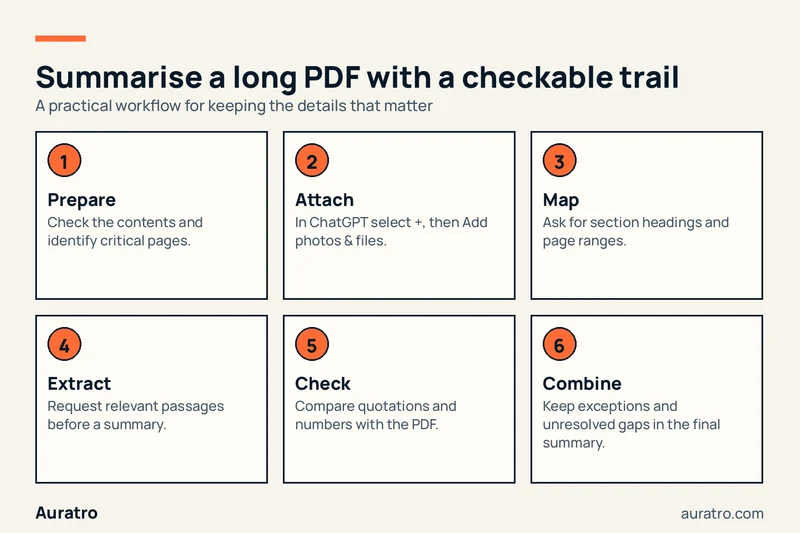
- Open the PDF and note its total pages, main headings and any pages with important tables, footnotes or exceptions. Decide which questions the summary must answer.
- In a ChatGPT conversation, select + in the prompt area, then Add photos & files, and attach the PDF directly. OpenAI documents this route for PDF questions.
- Ask for a document map: headings, page ranges and a note of any pages or sections the assistant cannot read. Compare the map with the PDF's contents and ending.
- Ask for one section at a time. Request relevant short passages, their page or section locations, and a separate plain-language summary that retains qualifications and exceptions.
- Open the cited locations in the original. Check quotations word for word and compare figures, units, dates and surrounding qualifications. Mark unsupported or missing claims for correction.
- Ask for a combined summary using the checked section notes. Include a separate list of uncertainties and sections not checked, then compare its key claims with your notes and the PDF.
The map is a coverage aid, not proof of coverage. If the assistant omits an appendix, ask about it explicitly and inspect the original. A page reference can be wrong or use a different numbering system, so search for a distinctive phrase and check the nearby context. Our guide to checking AI hallucinations explains why plausible text still needs verification.
Use a prompt that preserves evidence
Specify the intended reader and the details that matter. Ask for a passage and location before each interpretation, and allow the assistant to say it cannot find an answer. OpenAI's file guide describes asking for headings and relevant quotes. Asking for a passage before a paraphrase creates a useful trail, but does not guarantee accuracy.
Example prompt, written by Auratro:
``
Summarise the attached PDF for a project handover. First list its sections and page ranges. For each section, identify decisions, responsibilities, dates, exceptions and unresolved questions. Give a short supporting quotation and page or section reference for each important item, then paraphrase it separately. Mark anything you cannot locate or read. Do not fill gaps with assumptions. Wait for me to check the extracts before combining them.
``
Change the list of priorities to suit the document. For a research report, ask for the methods, sample, findings and limitations instead. For a manual, ask for prerequisites, steps and warnings. The five-part AI prompt offers a way to specify the task and output; here, the evidence trail is the part that makes the answer easier to audit.
Work through an example
Imagine a fictional 40-page project report with a schedule in the main text and an exception in an appendix. Your question is: what must the team do before the handover? First request a map and compare it with the contents page. If the map ends at page 34, the appendix needs a separate request. A polished overview that misses those last pages is incomplete for this purpose.
Next, ask for the schedule and exception with locations. Suppose the assistant says the handover is due in June and cites page 12. Read page 12 yourself: does June refer to a draft, a review or the final handover? If the appendix adds a condition, carry that condition into the combined summary. This is an illustrative checking exercise, not a recorded answer from a product or a claim about a real report.
Use a small evidence table in your own notes: one column for the claim, one for the PDF location and one for your check. Label each item verified, corrected or unresolved. The table helps distinguish an answer that was merely generated from one you have checked. If a reference cannot be found, leave the item unresolved rather than treating a confident sentence as evidence.
Handle charts, scans and long sections
A PDF can contain selectable text, page images, charts or a mixture. As of 25 November 2026, OpenAI says ChatGPT can analyse text and images in directly attached PDFs, while files saved as GPT knowledge or project files are handled differently and embedded images may not be included automatically. Its guide suggests attaching the PDF directly or uploading the particular image separately when asking about a chart. Check the chart and its labels yourself.
Anthropic's PDF documentation describes text, images, charts and tables in its Claude API, and warns that dense PDFs can fill the available context before a page limit is reached. A context window is the amount of material a model can work with at once. If a file is too large or a section is missed, split it at sensible section boundaries, preserve page labels and inspect the joins. See how context windows affect long chats for the underlying constraint.
Limits and what to check
A summary cannot establish that the original is correct, and a citation is a pointer to inspect, not a guarantee that a claim follows from it. Google notes that Gemini Notebook may reference an entire short source without citing individual text, so the level of citation detail can vary. Even where references are supplied, compare the actual passage and its context with the claim.
File handling, availability, upload limits and privacy settings vary by product, plan and version; consult the current official instructions before relying on a particular feature. For decisions where an omitted condition would matter, read the relevant source pages in full. Keep a list of unread pages, ambiguous figures and unresolved references alongside the summary until they are checked.
Sources & further reading
Written by the Auratro desk with AI assistance and checked against the sources listed above before publication. See how we work, or report an error. Editorial policy · Contact